Industrial HMI Design and Operator Experience: UI/UX Discipline on Factory Floors

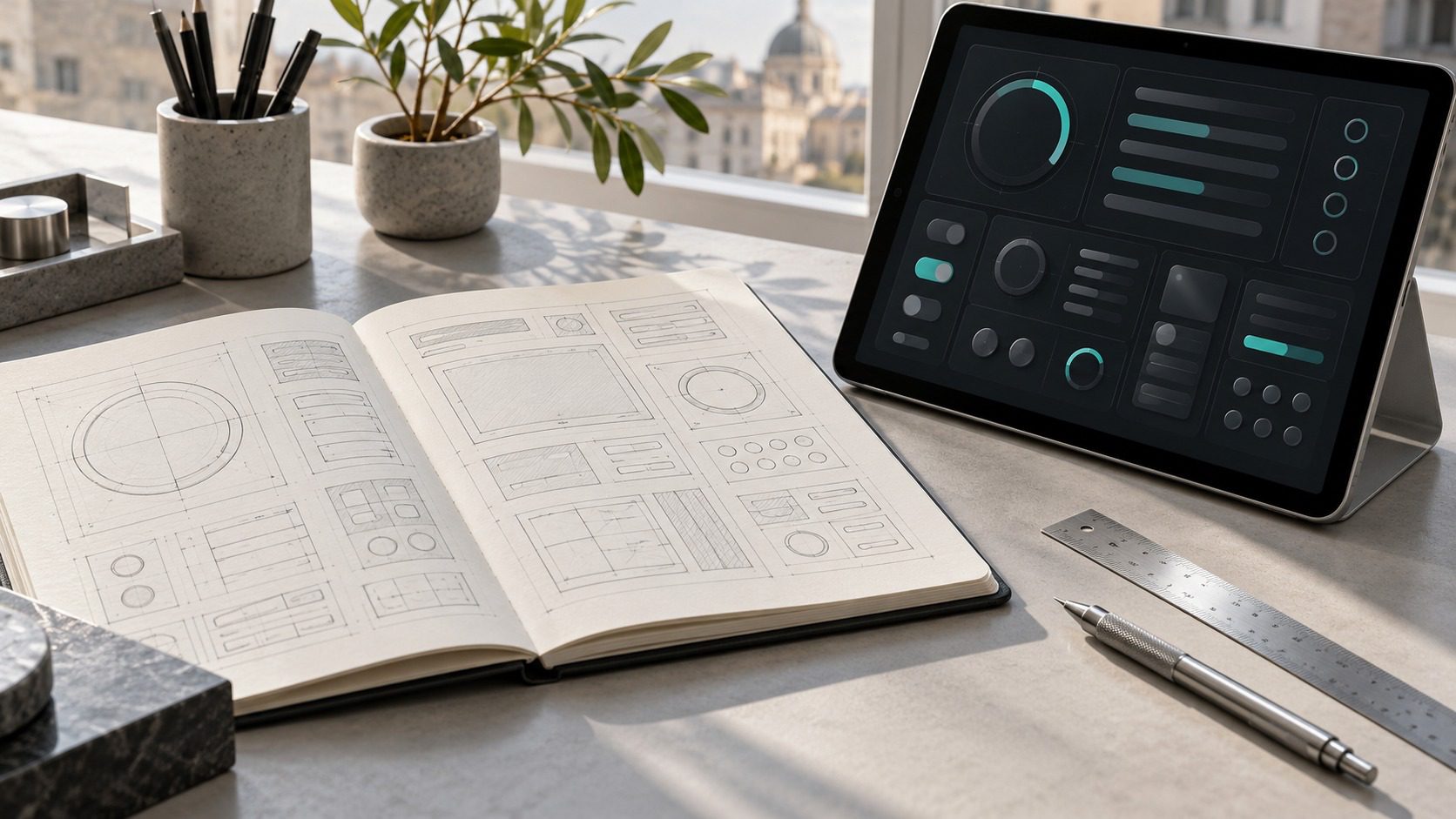
Rather than exhausting an operator’s cognitive capacity with visual clutter, industrial interfaces must be structured to guide swift, correct decisions during critical moments.
Operators who effortlessly navigate smartphones in their daily lives often struggle with industrial machine panels, not because of a lack of technical skills, but because of poor HMI design and cognitive overload. When interface design is neglected during automation commissioning, screens become cluttered with disorganized buttons, jarring colors, and data dumps. This practical guide outlines key engineering principles for reducing cognitive load, establishing a consistent design system, enforcing alarm discipline, and structuring role-based screen architectures on the factory floor.
Cognitive Overload on Factory HMI Panels
On an active manufacturing line, an operator’s primary duty is observing the physical behavior of machinery, raw material feeding, and part quality. Yet conventional factory HMI screens frequently pull their attention away from the process and force them to solve interface puzzles instead.
When a technician who handles complex banking or logistics apps on a phone in seconds gets lost navigating a control panel, the problem lies in interface design, not operator capability. An industrial display must never demand 100 percent of an operator’s mental bandwidth. The success of an HMI is measured not by how many raw variables it packs onto the glass, but by how easily it facilitates critical operating decisions with minimal friction.
Modern platforms bringing HTML5 and JavaScript support to automation are an opportunity to introduce mature software usability standards to the shop floor, rather than an excuse to add decorative visual noise.
Establishing a Design System and Visual Consistency
The most common failure mode in automation projects is incremental screen bloat during commissioning. Every newly requested manual function or sensor gets tacked on with whatever font size, border style, or unaligned coordinate happens to be available at that moment.
A professional HMI architecture demands an established design system before any code is written:
- Typography Rules: Use no more than two or three font sizes across the entire project. Headings, standard labels, and numerical readouts must follow a predictable visual hierarchy.
- Button and Icon Library: Standardize components for primary actions, secondary toggles, and navigation buttons. Outlined, filled, and disabled states should draw from a unified asset repository.
- Alignment Grid: Rather than scattering dials across available gaps, divide the canvas into horizontal and vertical grid columns to maintain visual balance and legibility.
| Design Element | Flawed Pattern | Recommended Engineering Practice |
|---|---|---|
| Typography | Inconsistent fonts, random sizes, arbitrary colors | Strict 2-3 tier typography scale |
| Buttons | Mismatched dimensions and disparate styles | Uniform touch targets with state-driven color shifts |
| Icons | Low-resolution images pulled from web searches | Clean vector assets with transparent backgrounds |
| Layout | Ad-hoc placement in empty corners | Grid-based modular layout with clear functional zones |
Color Hierarchy and Alarm Discipline
A frequent misstep on industrial screens is treating the panel like an amusement park. When pumps, valves, and status tags are continuously rendered in bright saturated green, blue, and yellow, operators suffer from sensory fatigue, making real red alarm conditions easy to overlook.
The foundational principle of high-performance HMI standards, such as ISA-101, is straightforward: Normal operation should be visually calm and mostly colorless.
When machinery runs within nominal thresholds, the interface should rest in muted slates, light grays, and neutral tones. Saturated colors must be reserved exclusively for abnormal events, warnings, and safety interruptions:
- Neutral Canvas: Soft gray or dark slate backgrounds prevent eye fatigue and maintain clear contrast.
- Amber / Yellow: Non-critical deviations, scheduled maintenance notices, and predictive warnings.
- Red: Urgent emergencies, active safety trips, and critical equipment faults requiring immediate intervention.
- White / Soft Blue: Interactive selections and active toggles.
Avoid flashing animations across general menu buttons during alarms. Alarms should appear directly adjacent to the affected equipment and within a dedicated top banner without disorienting the operator.
Physical Shop-Floor Ergonomics and Touch Targets
The pixel-perfect precision of an office mouse pointer does not exist on the plant floor. Operators frequently wear industrial work gloves; hands may be coated in machine oil, coolant mist, or dust. Furthermore, protective overlays on industrial touchscreens become scratched and clouded over years of harsh duty.
Physical realities demand practical touch ergonomics:
- Minimum Touch Target Dimensions: Touchpoints should measure at least 40×40 pixels, translating to approximately 10 to 12 millimeters on physical hardware. Tightly packed small buttons dramatically increase accidental actuations.
- Bezel Clearances: Placing critical buttons flush against the physical enclosure bezel creates ergonomic frustration. Always preserve safety margins along display borders.
- Visual Feedback: Provide immediate button depression or highlight feedback to confirm an action has been registered by the controller. Lack of tactile or visual response leads to repeated rapid pressing.
Role-Based Screen Architecture: Operator vs. Maintenance
A machine interface cannot serve every user profile identically. The daily operational workflow of a machine tender differs fundamentally from the diagnostic needs of a troubleshooting technician.
Dumping raw PLC I/O addresses, internal register values, and complex sensor calibrations onto the main operating screen confuses line workers and invites operational errors.
A robust architecture segregates functions into two distinct tiers:
- Operator Tier: Streamlined overview, cycle start and stop, recipe selection, piece count, cycle timing, and plain-language fault notifications.
- Maintenance and Engineering Tier: Password-protected or role-gated access to diagnostic pages, force I/O tables, PID tuning parameters, drive telemetry, and fieldbus communication logs.
Keep daily operational glass clean and focused; leave internal engineering telemetry where it belongs.
Navigation Architecture and Information Hierarchy
Forcing an operator to drill down more than three menu levels to reach an operational function is an architectural flaw. Maintain a clear separation between monitoring and supervisory control:
- Persistent Header: Display machine designation, operating mode (Auto/Manual), current user role, active recipe, and system timestamp at the top of every screen.
- Central Canvas: Devoted exclusively to the active subsystem overview and process status.
- Persistent Footer: Keep high-frequency navigation targets, recipe management, manual jogging, and the alarm summary accessible in a single touch.
- Critical Action Safeguards: Routine operating inputs should be swift, while high-risk actions such as mechanical homing, parameter overrides, or zero resets must require explicit confirmation dialogs.
Localization and Terminology Consistency
Interface translation in automation is frequently outsourced via raw spreadsheet exports with zero operational context. This lack of diligence produces awkward translations that can trigger serious shop-floor hazards.
Translating engineering terms without understanding their physical mechanism risks operator confusion during critical operations.
Key principles for localization:
- Always verify technical terminology within its industrial context.
- Standardize technical abbreviations across screens rather than creating arbitrary letter clusters.
- Ensure text containers have sufficient margin for length expansion in multilingual deployments.
Siemens HMI Masterclass Principles
The HMI Design Masterclass published by Siemens provides a proven methodology for structured industrial panel development across seven practical steps:
- Analyze Operational Tasks: Observe what the machine operator actually does on the shop floor before sketching screen layouts.
- Establish Design Guidelines: Define color palettes, font tiers, button sizes, and icon libraries upfront.
- Standardize Screen Architecture: Lock header, working area, and navigation zones into identical positions across all views.
- Enforce Restrained Color Usage: Keep normal running screens calm; deploy color only to signal abnormalities.
- Select Meaningful Graphics: Represent physical equipment using clean 2D functional schematics rather than busy 3D models.
- Ensure Intuitive Navigation: Limit page depth and keep key workflows within two screen transitions.
- Validate Under Field Conditions: Test the interface on actual hardware with real plant operators rather than evaluating it from an office desk.
Checklist: Testing the Interface Before Commissioning
Before a machine is signed off for client delivery or integrated into serial production, verify these five operational questions:
- Cognitive Clarity: Can an unfamiliar operator grasp the current operating status (running, stopped, faulted) within three seconds of looking at the panel?
- Glove Test: Can every routine button and toggle be reliably actuated while wearing heavy industrial gloves?
- Alarm Isolation: Are distracting bright red or amber indicators completely absent during normal, nominal production?
- Role Segregation: Have detailed diagnostic I/O tables and parameter overrides been properly isolated from the standard operator screen?
- Localization Review: Have all truncated text strings, mistranslations, and cryptic acronyms been eliminated?
📚 References
Siemens Industry Online Support (SIOS) — HMI Design Masterclass: 7 Steps to a Well-Designed HMI Guidebook.
📋 Related Links
🔗 Siemens HMI Design Masterclass Guide
📂 Guides: Systems Integration and IT/OT
📄 Measurement System Analysis and Test Verification
Last updated: July 2026 | Version: 1.0